
Time Tracking for Virtual Assistants: Why I Upgraded to Paid TimeCamp

-
Time Tracking for Virtual Assistants: Why I Upgraded to Paid TimeCamp
- Why Is Time Tracking Important for Virtual Assistants?
- What Is the Difference Between Free and Paid TimeCamp?
- How Do I Use Paid TimeCamp to Track My Client Hours?
- How Do I Use TimeCamp's Monthly Reports to Track Billable Hours?
- How Much Does Paid TimeCamp Cost?
- Can I Use TimeCamp on My Mobile Phone?
- Is Paid TimeCamp Worth It for Virtual Assistants?
- FAQs
Time Tracking for Virtual Assistants: Why I Upgraded to Paid TimeCamp
Time tracking for Virtual Assistants is important when you're managing several clients and need to keep accurate records of your billable hours. I need time tracking software that is simple, reliable and helps me stay organised throughout my working day.
I first started using the paid version of TimeCamp in 2023, but later switched to FreeAgent because it offered everything in one place. I could raise invoices, track my working hours and manage my business expenses without needing separate tools.
However, I found that FreeAgent sometimes pulled through old time entries and mixed them with my current month's work. I then had to spend a lot of time identifying which hours belonged to which month. It also made me question whether some previous hours had been missed when invoicing. I eventually lost confidence in the accuracy of its time tracking and decided to switch back to TimeCamp.
TimeCamp makes it easy to start and stop timers, track my client hours accurately and edit entries when needed. It takes the hassle out of recording my billable time, but after returning to the free version of TimeCamp, I ran into another problem. My Projects board was becoming cluttered with old time entries. As I continued adding new work, the list kept growing, making it increasingly difficult to find and manage my active projects.
I needed a way to organise my projects more efficiently without constantly creating new ones. That's when I decided to upgrade to the paid version of TimeCamp again.
The screenshot below shows my old project board before upgrading. As you can see, it was becoming cluttered and difficult to manage.
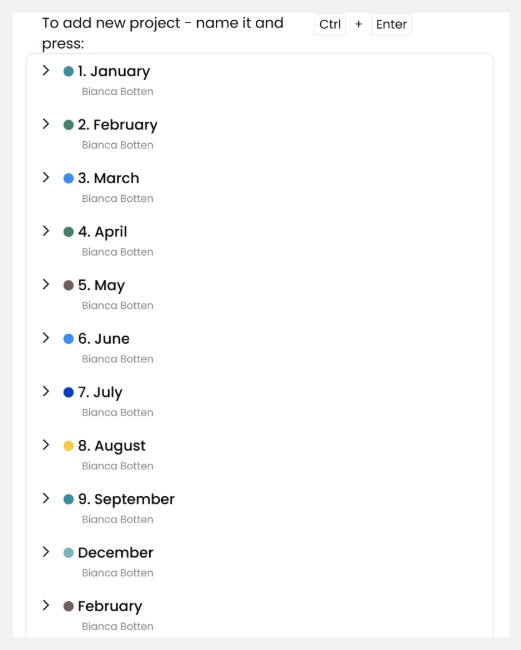
Image description: Screenshot of my old TimeCamp Projects board showing how I created a separate project for each month. Over time, the list became cluttered and difficult to manage.
Why Is Time Tracking Important for Virtual Assistants?
Accurate time tracking for Virtual Assistants is important, especially when you're working with several clients and switching between different tasks throughout the day. It helps you keep track of your billable hours and ensures you're charging clients accurately for the work you complete.
When I first started working as a Virtual Assistant, I tracked my hours using pen and paper. I would write down my start and finish times and then manually add everything up at the end. It worked, but it wasn't time-efficient and I used a lot of unnecessary paper.
These days, I work with more clients and regularly switch between different projects. Trying to track all those hours manually would take too much time.
Using time tracking software makes the whole process easier. I log in to TimeCamp, select the client I'm working on and click the start button. When I finish a task or move on to another client, I stop the timer and start a new one. I do this throughout the working day and it takes just a few seconds.
Another benefit is being able to see exactly how many hours I've spent working on each client's projects. This is useful when a client has booked a set number of hours with me, as I can keep track of their remaining time and report back on how their hours have been used.
It also takes away the hassle of remembering when I started and finished each task. The timer does the hard work for me.
I run my Virtual Assistant business on my own, so I don't need complicated software designed for large teams. I just need something simple, accurate and reliable that helps me manage my working hours. For me, TimeCamp does exactly that.
What Is the Difference Between Free and Paid TimeCamp?
The main reason I upgraded to paid TimeCamp was because my old Projects board had become cluttered with monthly work that I no longer needed.
I wanted to delete my old projects and start again with a much cleaner system. Before doing this, I downloaded my old timesheets as PDFs so I could refer back to them if needed.
One of the benefits of the paid Starter plan is that I can organise my work by client, with individual tasks underneath. This is useful because much of my work repeats each month, such as newsletters, diary management, bookkeeping and social media content creation.
Instead of creating new projects every month, I now have each client set up with their regular tasks underneath. When I start working, I find the task and click the timer.
If you compare the screenshot below with my old project board shown earlier, you can see how much cleaner and easier it is to manage.
It's a small change, but it has made a difference to how much time I spend on my month-end administration. Any time I can save on my own business admin is a win!
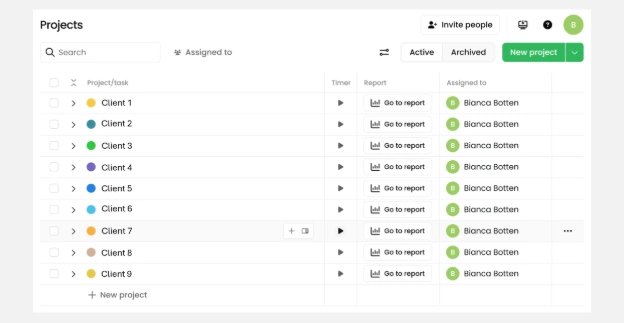
Image description: Screenshot of my reorganised TimeCamp Projects board showing how I organise each client as a separate project. Client names have been replaced with numbers for confidentiality. Each client has their own colour, making it easier to manage tasks.
How Do I Use Paid TimeCamp to Track My Client Hours?
I use TimeCamp to track my billable hours across different clients and tasks throughout the working day.
For each client, I set up a project with their regular tasks underneath. For example, one of my clients requires monthly bookkeeping in Xero, so I have created a separate task specifically for this work.
When I start working on their accounts, I click the play button next to the task and TimeCamp starts tracking my time. When I finish, I stop the timer. It's that simple!

Image description: Screenshot showing how I organise a client's bookkeeping tasks in TimeCamp. I simply click the play button next to the Accounts/Xero task to start tracking my billable hours.
As you can see from the screenshot below, I have stopped and restarted my timer while working on the same client's accounts. TimeCamp records the exact start and finish times for each session, along with the total time worked.
For example, if I'm working on a client's accounts and a parcel arrives at the door, I simply stop my timer, answer the door and restart it when I return to work.
I really like this feature because it keeps my time tracking accurate, even when I'm interrupted throughout the day. It means I can be confident that I'm only charging clients for the time I have actually worked.
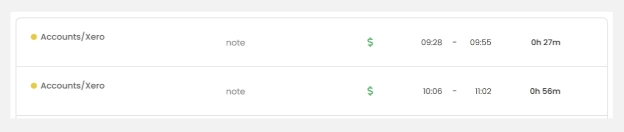
Image description: Screenshot showing how TimeCamp records separate working sessions for the same client task. It displays the start and finish times and the total minutes worked, making it easy to track billable hours accurately when taking breaks.
One of my favourite features of TimeCamp is being able to see exactly how many billable hours I have worked each day.
I set myself a daily target for paid client hours, which varies depending on my workload and other commitments. Keeping track of these hours helps me stay focused and work towards my monthly income goals.
As you can see from the screenshot below, TimeCamp records the start and finish times for each task and calculates the total hours worked. On this particular day, I completed 5 hours and 10 minutes of paid client work, even though I stopped and started my timer several times throughout the day.
As a Virtual Assistant, I regularly switch between clients and tasks, so having everything recorded in one place makes it much easier to see how much work I have completed.
I can quickly check my total billable hours without having to manually add everything up.
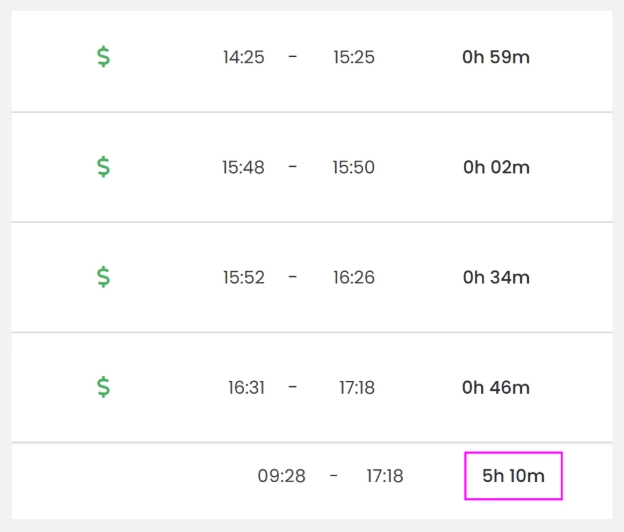
Image description: Screenshot showing the final few entries of my daily TimeCamp timesheet, including the start and finish times of individual work sessions. Although only part of the day is visible, the total shows 5 hours and 10 minutes of billable client work recorded that day.
How Do I Use TimeCamp's Monthly Reports to Track Billable Hours?
As well as tracking my daily hours in TimeCamp, I keep a separate Excel spreadsheet to check how much I have earned each day and whether I have reached my daily income target.
At the end of each month, I use TimeCamp's summary report to see exactly how many billable hours I have worked for each client.
As you can see from the screenshot below, I tracked 102 hours and 25 minutes of client work in this particular month.
The report breaks down my working hours by client and individual tasks. This is useful because I can see exactly how much time I have spent on different types of work throughout the month.
I use this information to manually create my client invoices in FreeAgent, the accounting software I use for my Virtual Assistant business. I copy the relevant tasks and hours recorded in TimeCamp into FreeAgent to build each client's invoice. It's a straightforward process, doesn't take me long and I know the hours I'm invoicing are accurate.
TimeCamp also allows me to download reports in PDF or Excel format. I save a copy of my monthly report for my own records.
Another benefit is being able to answer client questions about how long a particular task has taken. This is especially helpful with new clients who may want to understand how much time certain administrative tasks have taken. I can refer to my report and give them an accurate breakdown rather than guessing.
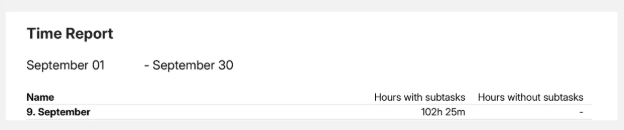
Image description: Screenshot of my TimeCamp monthly time report for September, showing a total of 102 hours and 25 minutes of recorded work. The full report provides a breakdown of the hours worked for each client, including individual tasks. I've only shown the summary at the top of the report to protect client confidentiality.
How Much Does Paid TimeCamp Cost?
I chose TimeCamp's Starter plan, which cost me $47.88 for the year. As TimeCamp charges in US dollars, this worked out at £36.28 at the time of purchase. The Starter plan gives me the features I need to manage my client projects, track my billable hours and produce monthly reports for invoicing.
I use TimeCamp every day that I am working and I think the annual subscription is excellent value for money. For just over £36 a year, I have a reliable way to track my client hours, keep accurate records and make my month-end invoicing much easier.
For me, the biggest benefit is knowing that my client hours are accurate. There's no guesswork involved.
Please note that TimeCamp's subscription prices may change and the amount you pay in pounds will depend on the exchange rate at the time of purchase.
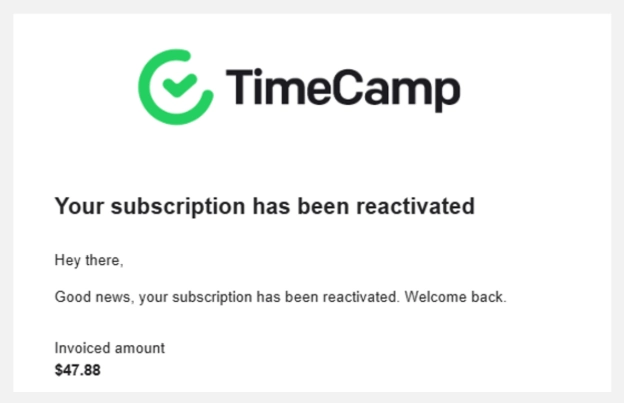
Image description: Screenshot of my TimeCamp subscription confirmation showing the annual payment of $47.88 for the Starter plan. This worked out at £36.28 when I purchased it.
Can I Use TimeCamp on My Mobile Phone?
One feature I really like about TimeCamp is its mobile app, which means I don't always need to be sitting at my laptop to track my working hours.
The app is useful when I'm out and about. There have been occasions when I've been waiting in the car for my children and have used that time to catch up on a few client tasks on my phone. Rather than taking my laptop everywhere, I can get some work done on my phone and use the TimeCamp app to record my billable hours.
The best part is that everything syncs between the mobile app and desktop version. Any time I record on my phone appears on my desktop and vice versa. This means all my client hours are recorded in one place, regardless of which device I use.
It's a simple feature, but as a Virtual Assistant and a busy mum, I appreciate having the flexibility to work and track my time wherever I am.
Is Paid TimeCamp Worth It for Virtual Assistants?
For me, paid TimeCamp is worth the money. I've used TimeCamp for several years, tried switching to FreeAgent for time tracking and eventually returned to TimeCamp because I found it much easier to use.
However, if you're a new Virtual Assistant just starting your business, you might not need the paid version. TimeCamp offers a free plan, which is a great place to start.
I've written a separate blog, TimeCamp Review: How I Track Client Hours as a Virtual Assistant, explaining how I use free TimeCamp to track my working hours and manage client tasks.
As your business grows and you start juggling more clients and tasks, having reliable billable time tracking software becomes more important. I now happily pay for the Starter plan because it saves me time, keeps my client hours organised and makes my month-end invoicing much easier.
For such a small annual cost, it's one less piece of business administration I need to worry about.
If you're looking for simple, reliable time tracking for Virtual Assistants, I would recommend giving TimeCamp a try.
FAQs
Q. What time tracking software do I recommend for Virtual Assistants?
I recommend TimeCamp because it's the software I use every day in my Virtual Assistant business. I've previously tracked my hours using pen and paper and FreeAgent, but I find TimeCamp easier for managing multiple clients, recording billable hours and preparing my monthly invoices.
Q. How do Virtual Assistants track billable hours?
Virtual Assistants can track billable hours using time tracking software such as TimeCamp. I create a project for each client, select the task I'm working on and start the timer. When I finish working, I stop the timer so I only charge clients for the time I've actually worked.
Q. Is free time tracking software good enough for a Virtual Assistant?
Yes, particularly if you're just starting your Virtual Assistant business. Free time tracking software may be enough when you only have one or two clients. As your workload increases, you might find that paid software offers additional features that make managing your time easier.
Q. Can I use TimeCamp to track hours for multiple clients?
Yes. I use TimeCamp to track working hours across several clients. Each client has their own project, with individual tasks underneath. This makes it easier to see how much time I've spent working for each client and prepare accurate invoices.
Q. Is TimeCamp worth paying for?
In my experience, yes. After using both free and paid TimeCamp, I decided to upgrade to the Starter plan. I use it every working day to track client hours, organise tasks and prepare monthly invoices. For my business, it's worth the annual subscription.
You might also like:
Top 10 Virtual Assistant Tools (Free + Paid)
Why I Use FreeAgent Accounting Software as a Work From Home Virtual Assistant
-
Time Tracking for Virtual Assistants: Why I Upgraded to Paid TimeCamp
- Why Is Time Tracking Important for Virtual Assistants?
- What Is the Difference Between Free and Paid TimeCamp?
- How Do I Use Paid TimeCamp to Track My Client Hours?
- How Do I Use TimeCamp's Monthly Reports to Track Billable Hours?
- How Much Does Paid TimeCamp Cost?
- Can I Use TimeCamp on My Mobile Phone?
- Is Paid TimeCamp Worth It for Virtual Assistants?
- FAQs